

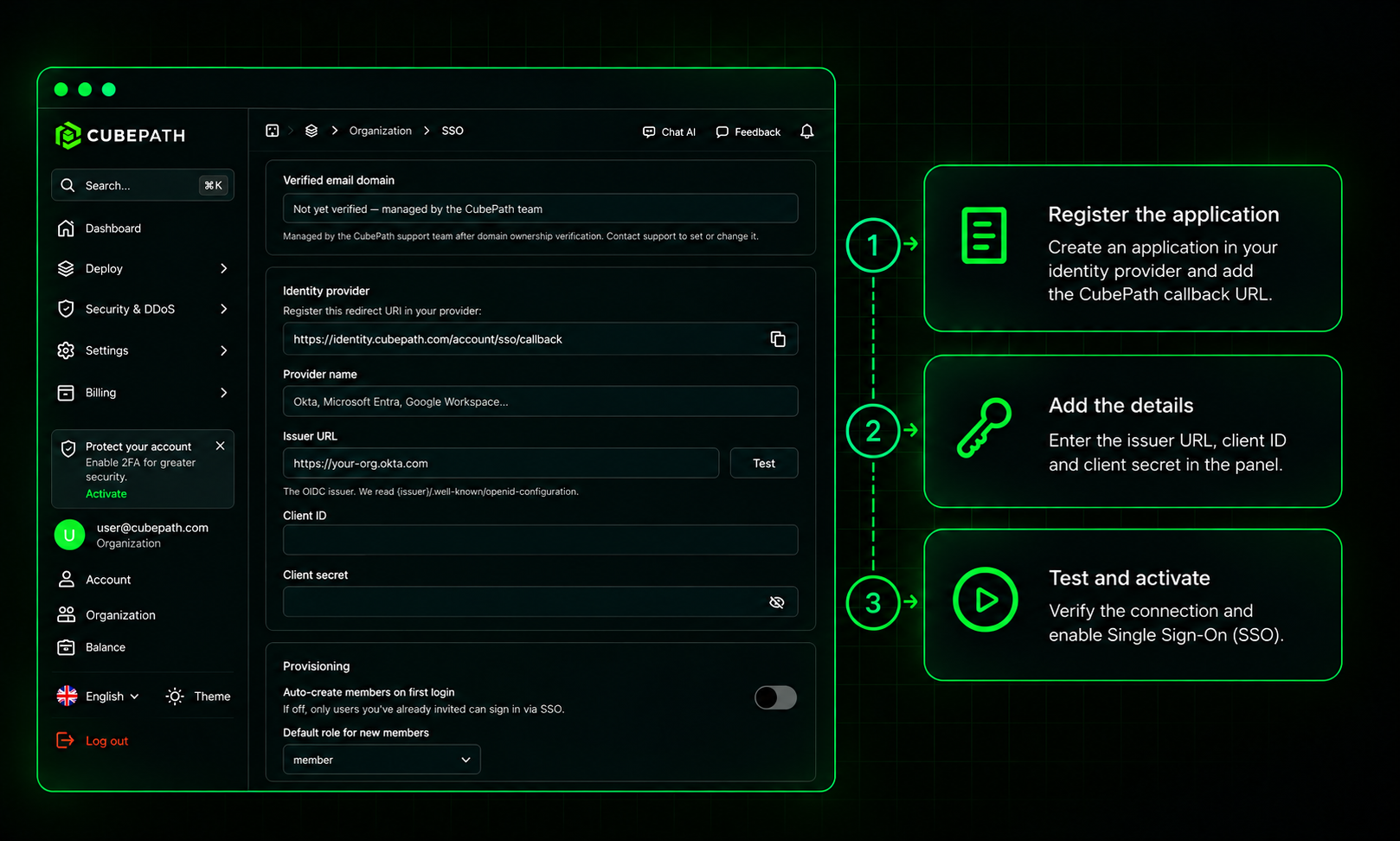
There is a moment in every growing team when the way people log in stops being a detail. Someone leaves and a week later nobody is quite sure whether their account is gone from every system. A contractor needs access for two weeks and ends up with a password that outlives the contract by a year. A shared credential lives in a pinned note because asking for a seat took longer than copying it.
Infrastructure makes this worse than most tools, because the accounts involved can start and stop production servers and hold the keys to your networks. The gap between "we removed them from the company directory" and "they can no longer reach the panel" is the window nobody wants to think about, and it is usually measured in whatever time it takes a person to remember.
The fix is old and well understood: stop keeping a separate password per tool, and let the one system your company already runs decide who is allowed in. That is what Single Sign-On does, and CubePath supports it for organizations. Your team signs in with your corporate identity provider, members are added on their first login, and access ends when your provider says it ends.
What follows is what you can connect, how you set it up, and what SSO changes for the people in your organization.
What You Can Connect
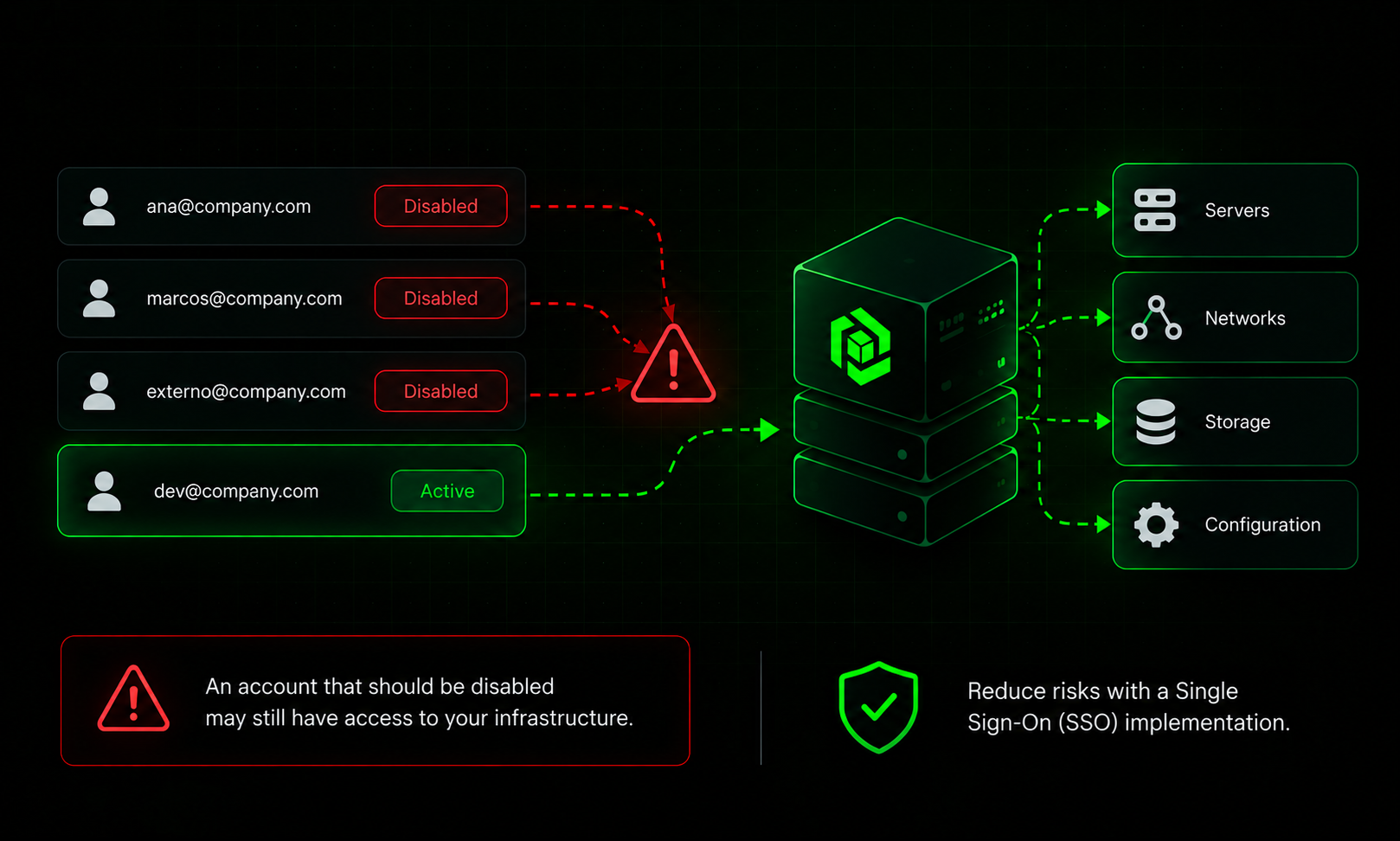
CubePath SSO uses OpenID Connect. If your identity provider supports OIDC, it works: Okta, Microsoft Entra, Google Workspace, self-hosted providers such as Authentik, and anything else that follows the standard. SAML is not supported, which is worth knowing before you plan a migration around it.
The requirement is a public OIDC discovery document. Your provider has to publish its configuration at the standard /.well-known/openid-configuration path, on an issuer reachable from the internet over HTTPS on the default port. A provider that only exists inside your private network, or that listens on a non-standard port, cannot be reached from our side. There is a Test button in the panel that checks exactly this before you commit to anything.
Tokens need to be signed with a standard asymmetric algorithm. The RSA and ECDSA families are accepted, which covers every mainstream provider with its default configuration. If yours has been set to something unusual, the connection test will tell you.
Setting It Up From the Panel
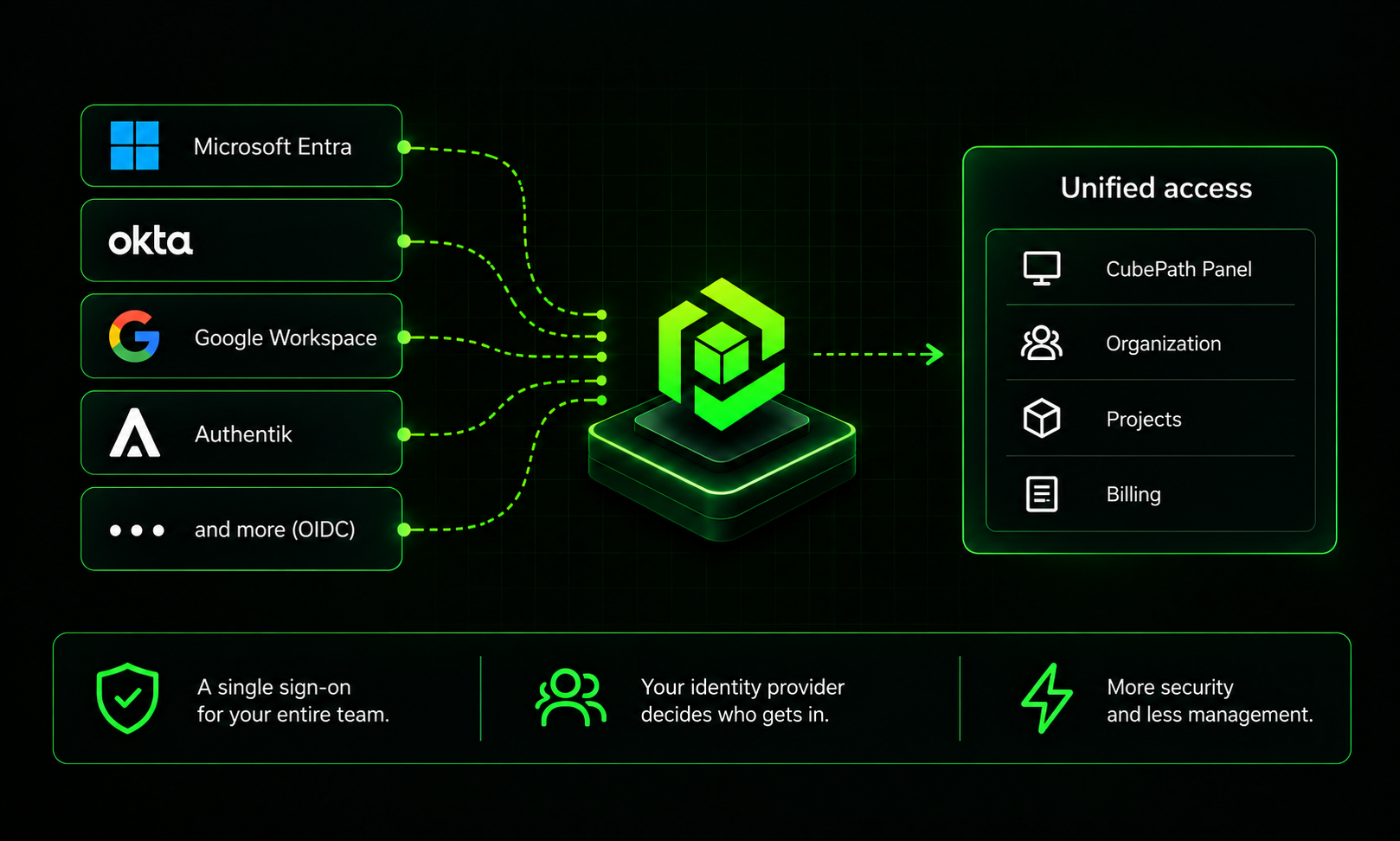
SSO lives in the dashboard under Organization, then SSO. Only organization owners and admins can see or change it.
Start by registering the callback in your provider. Create an OIDC application there and give it the redirect URI shown on the CubePath SSO page, with a copy button next to it:
https://identity.cubepath.com/account/sso/callback
Then bring back four values. A provider name, which is just the label your team will recognize, plus the issuer URL, the client ID and the client secret from the application you created. Use Test next to the issuer field to confirm CubePath can reach your provider before saving anything.
The client secret is stored encrypted and never shown again. When you come back to edit the configuration, that field is blank, and leaving it blank keeps the secret you already saved. You only retype it if you rotate it in your provider.
Then enable SSO and save. The settings are saved either way, so you can prepare everything in advance and turn it on when your team is ready.
Verifying Your Email Domain
Configuring the provider decides where logins go. What decides whose logins go there is your verified email domain, and that is a separate step handled with our support team.
You ask for it through support. Open a ticket from your organization requesting the domain, and our team confirms you control it before setting it on your account. It is a one-time step, and once the domain is set it stays.
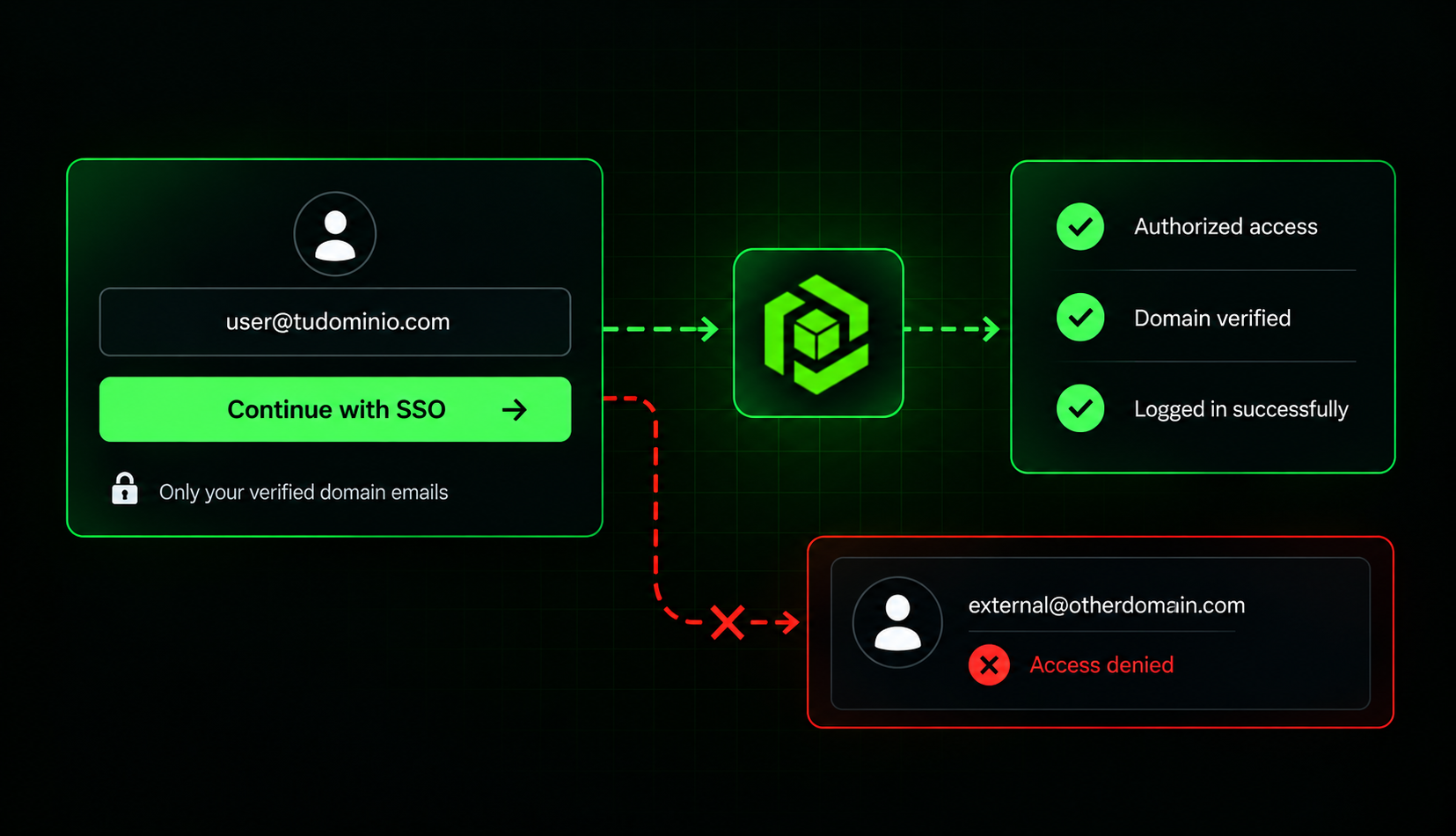
Verification is what turns on login by email address. Until your domain is verified, your SSO settings are saved but your team cannot start a login by typing their work email, because nothing maps that address to your provider yet. The SSO page shows the verification state so you always know where you stand.
The domain cannot be set by you, on purpose. If any organization could type a domain into a form, any organization could claim yours and route your employees' logins to a provider it controls. A domain also belongs to a single organization at a time. This is the slowest part of the setup and the part we are least willing to make self-serve.
It applies to every login, not just to setup. If your provider ever returns an identity whose email address falls outside your verified domain, that login is rejected. Your verified domain is the boundary of what your identity provider can assert inside CubePath.
How Your Team Signs In
They type their work email and choose Sign in with SSO. CubePath recognizes the domain, shows them your provider, and sends them there to authenticate. They come back already signed in, with no separate CubePath password involved. If your provider asks for MFA, a hardware key or anything else, that happens on your side of the flow.
People who are already in your organization simply log in. Existing members keep the role and the permissions they have. An invitation that was sent but never accepted is completed by the SSO login, so nobody ends up half joined.
Someone with a personal CubePath account on your domain has to be invited first. If a user already has their own CubePath account with a company address but is not a member of your organization, SSO will not adopt that account automatically. Invite them from the Team page and their next SSO login works. This is deliberate: an existing account should never be pulled into an organization purely because an email domain matched.
Who Gets Added, and With What Role
Auto-create members on first login is a switch you control. With it on, anyone from your verified domain who authenticates through your provider becomes a member of your organization on their first login, with no invitation needed. That is the setting most teams want, because it is the point at which onboarding in CubePath stops being a task anyone has to remember. With it off, SSO becomes a login method for people you have already invited, and everyone else is turned away.
You choose the role new members receive, from member, viewer or billing. Owner and admin cannot be handed out automatically. A mistake in an identity provider configuration should never be able to produce an administrator of your infrastructure account, so those two roles stay a manual and deliberate decision.
Members created by SSO are managed by your provider. Their role and their individual permission overrides are not edited by hand inside CubePath, because your identity provider is the source of truth for who these people are. In practice you decide the role once, in the SSO settings, and everyone provisioned that way arrives with it.
Offboarding, Which Is the Point of All This
This is where SSO earns its place, so it is worth being precise about what happens.
Disabling someone in your identity provider ends their CubePath access. They can no longer authenticate, so they cannot obtain a new session. With back-channel logout configured, described below, their current sessions end immediately as well.
Removing an SSO member from the Team page is immediate and final. It deletes their membership, signs them out of that organization, and deletes the API tokens they held for it, so anything they had automated stops too. They are also blocked from being recreated by SSO: their next login through your provider is refused rather than quietly provisioning them again. Re-inviting the same address from the Team page lifts that block whenever you want them back.
Sessions and Signing Out
SSO sessions are short. A regular CubePath session lasts a month. A session opened through SSO lasts about eight hours, after which the person authenticates through your provider again. That is what makes deactivation in your directory meaningful even if you configure nothing else: access ends within hours rather than whenever someone remembers to clean up.
Back-channel logout makes sign-out immediate. Register this URL in your identity provider and it will notify CubePath whenever a user signs out or is deactivated, so their CubePath sessions end right away:
https://identity.cubepath.com/account/sso/backchannel-logout
It is optional and everything works without it. It simply shrinks the window from hours to seconds, which matters most on the day you need it.
Every SSO login leaves a trail. It appears in your organization's activity log, and the user receives the same security notification email that any other sign-in method produces, showing the provider, IP address, approximate location and time.
SSO and Two-Factor Authentication
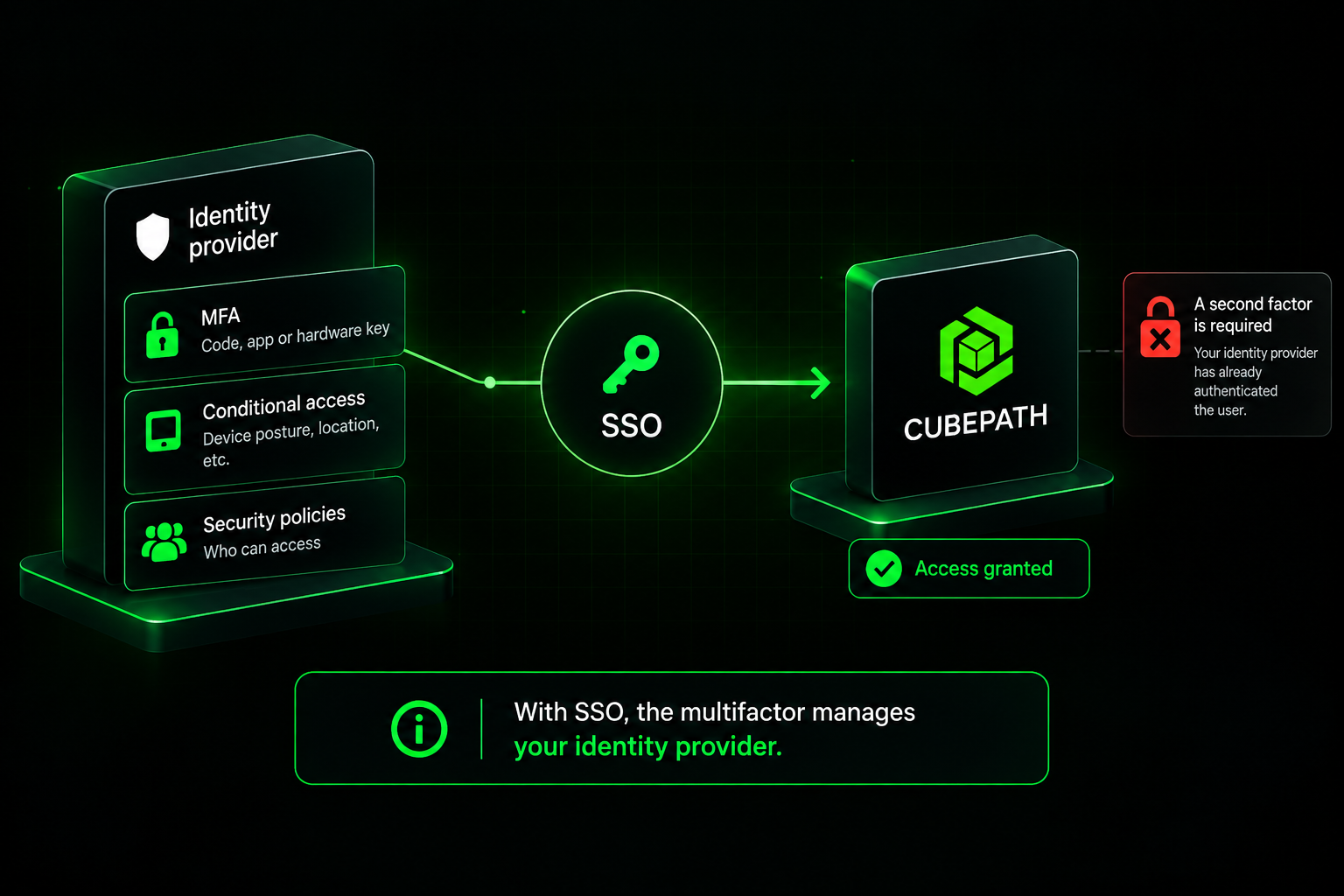
CubePath does not add its own 2FA prompt on top of an SSO login. When someone authenticates through your identity provider, the platform does not ask again for a code from their CubePath account.
The reason is that your provider is the authority for that login. It has already decided who the user is, under whatever policy you enforce: MFA, hardware keys, device posture, conditional access. A second factor managed here, on top of a decision made there, leaves you with two policies to keep in sync and a worse outcome when one of them is wrong.
The practical consequence is direct: once you adopt SSO, multi-factor is your identity provider's job. Enforce it there. Short sessions and back-channel logout are what keep CubePath aligned with the decisions you make in your directory.
Enabling SSO does not disable the other login methods. Accounts that already have a password can still use it, and personal 2FA still applies to those logins. SSO adds a way in for your organization rather than closing the others, so if your policy is that everyone must go through your provider, that is currently an agreement you enforce with your team.
What SSO Covers Today
Being useful here means being clear about the edges of the feature.
Members are created at login, not synced from your directory. There is no SCIM provisioning, so your CubePath member list reflects the people who have actually signed in rather than everyone who exists in your directory. Ending access is covered by short sessions, back-channel logout and the Team page, but the list itself is not a mirror of your directory.
Group claims do not map to roles. Everyone provisioned through SSO receives the same default role you configured. Different roles for different groups is not something you can express today.
One provider and one verified domain per organization. If your company signs in from several email domains, or you want to point two providers at the same organization, that is not supported yet.
Domain verification goes through support. It is a ticket and a human check rather than a button, by design, since it is the step everything else depends on.
The Shape of the Trade
SSO does not make access management disappear. It moves the decision to the system that should have been making it all along, and it makes that decision stick where the consequences are real: servers, networks, billing, credentials.
What you get for the setup effort is narrow and worth it. New people arrive with the right role without anyone filing a request. People who leave lose access when your directory says so, not when someone remembers. Nobody has one more password to store badly. And the answer to "who can reach our infrastructure account?" becomes the same as the answer to "who is in our identity provider?", which is the only version of that question a growing company can realistically keep track of.
If onboarding someone at your company currently means creating accounts in six places, this is a good one to take off the list. Create an OIDC application in your provider, paste the issuer, client ID and secret into Organization then SSO, test the connection, and open a ticket to verify your domain.