

Accessing IPMI (Intelligent Platform Management Interface) allows you to manage your server remotely, even when no operating system is installed.
From here, you can mount a custom ISO and start an installation as if you were physically in front of the server.
Accessing IPMI
- Go to your client panel: https://my.cubepath.com
- In the left-hand menu, navigate to: Deployment → Baremetal
- Select the Baremetal server you want to manage.
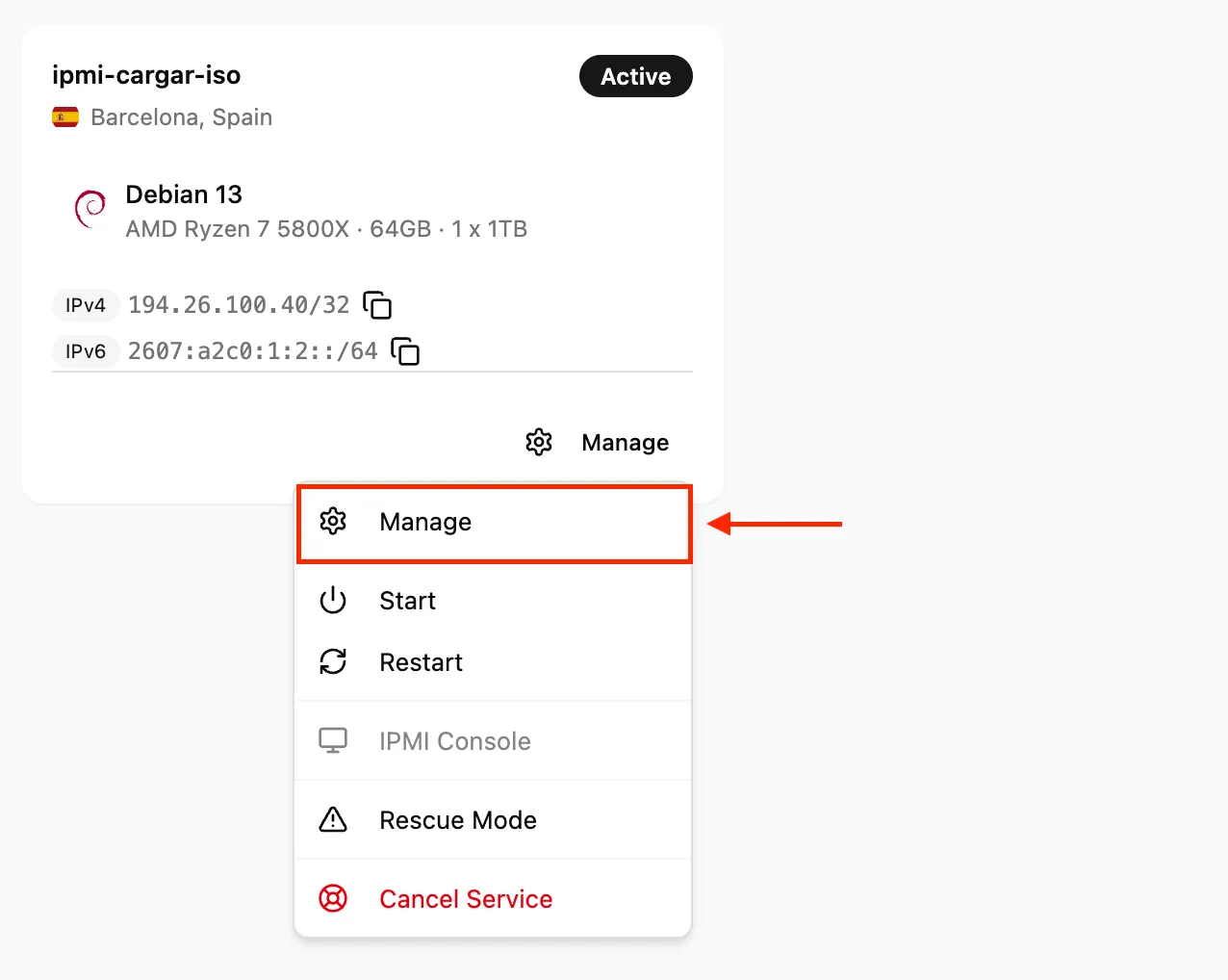
- Inside the server page, locate the section: IPMI Console
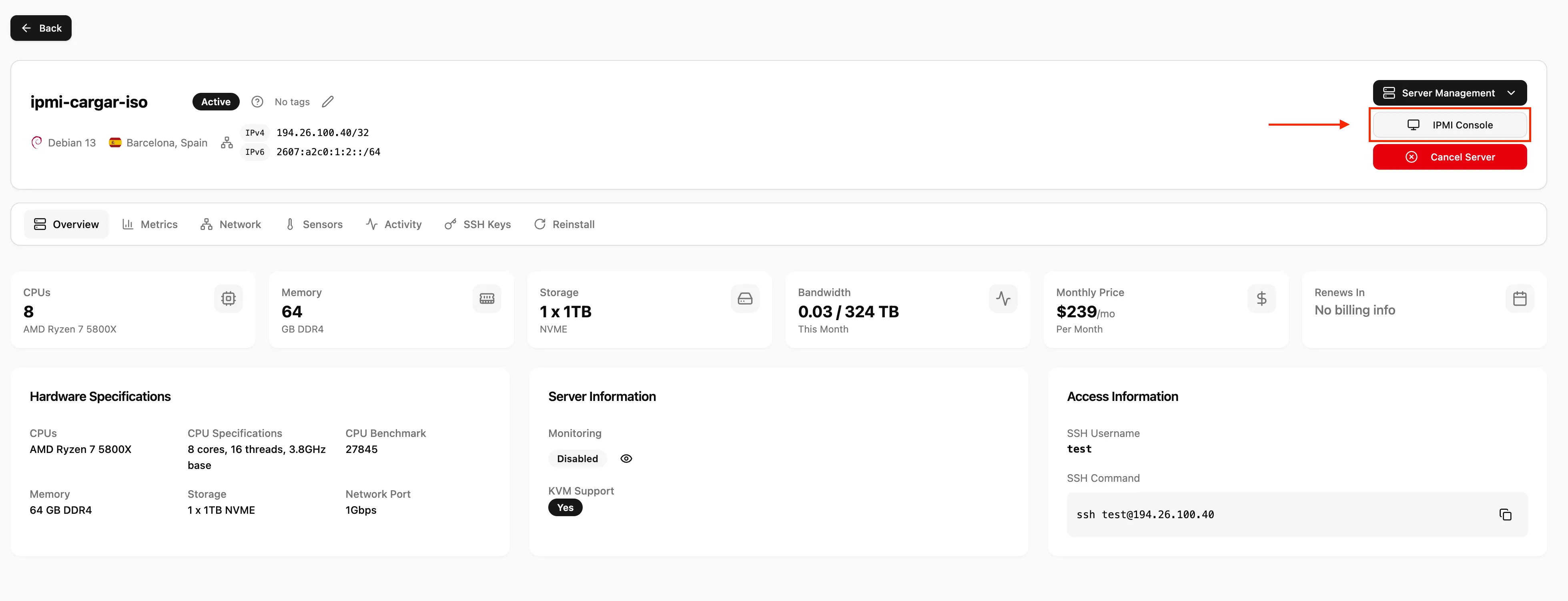
- You will find:
- IPMI URL
- Username
- Password
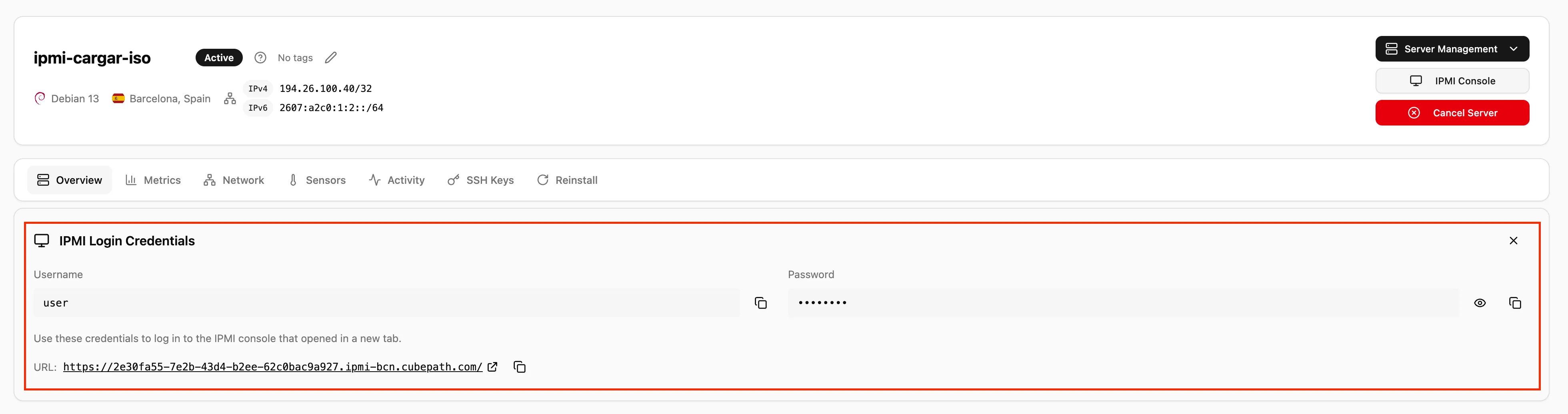
- Open the provided URL and log in using the credentials.

Opening the Remote Console
- Once inside the IPMI panel, look for: Remote Console
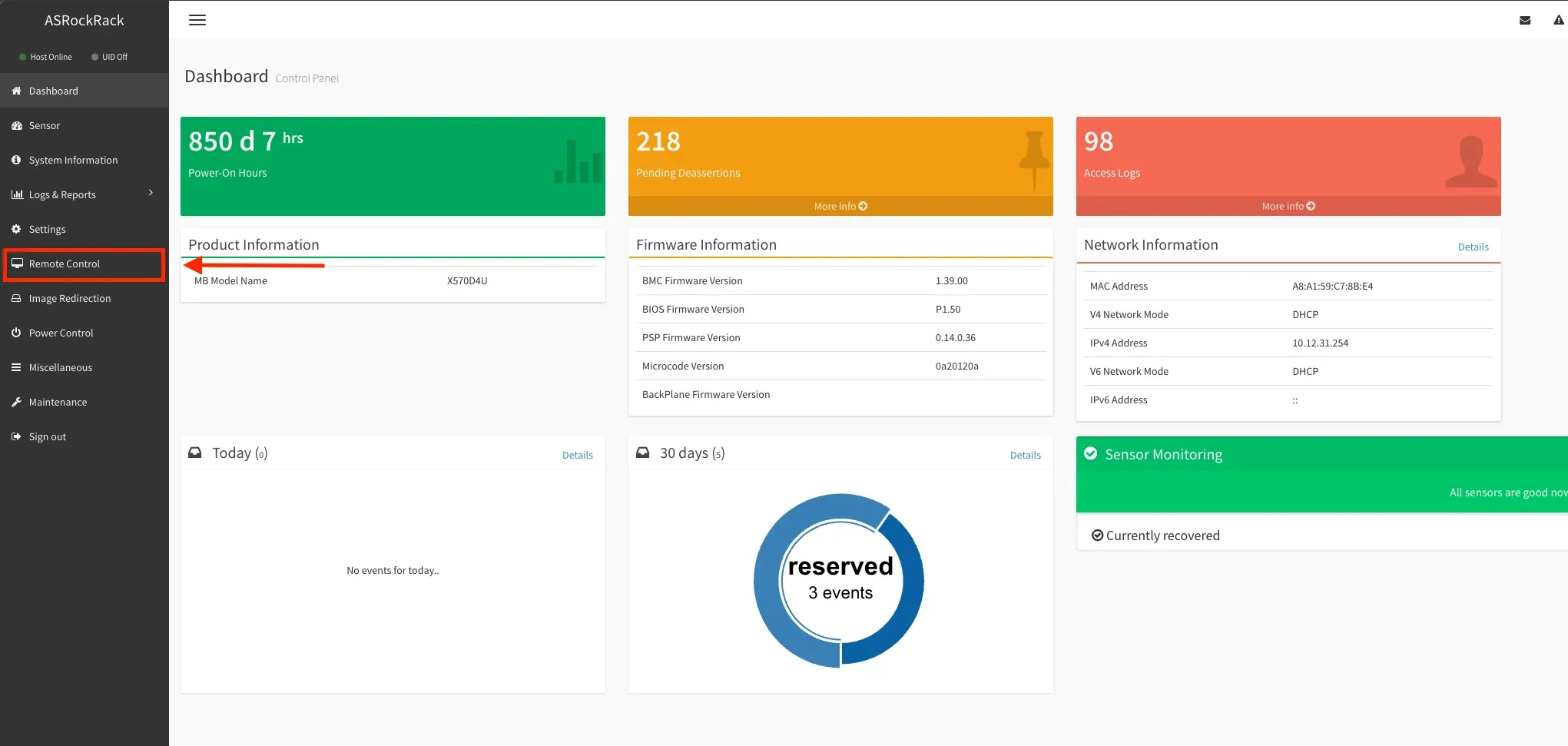
- Launch the console using: H5Viewer (HTML5)
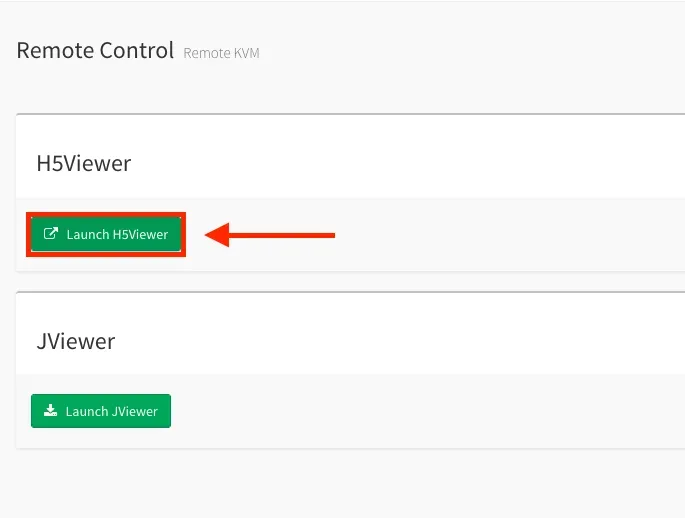
This will open a remote console directly in your browser.
Mounting a Custom ISO
- In the H5Viewer window, at the top right:
- Click Browse File
- Select the ISO file from your computer
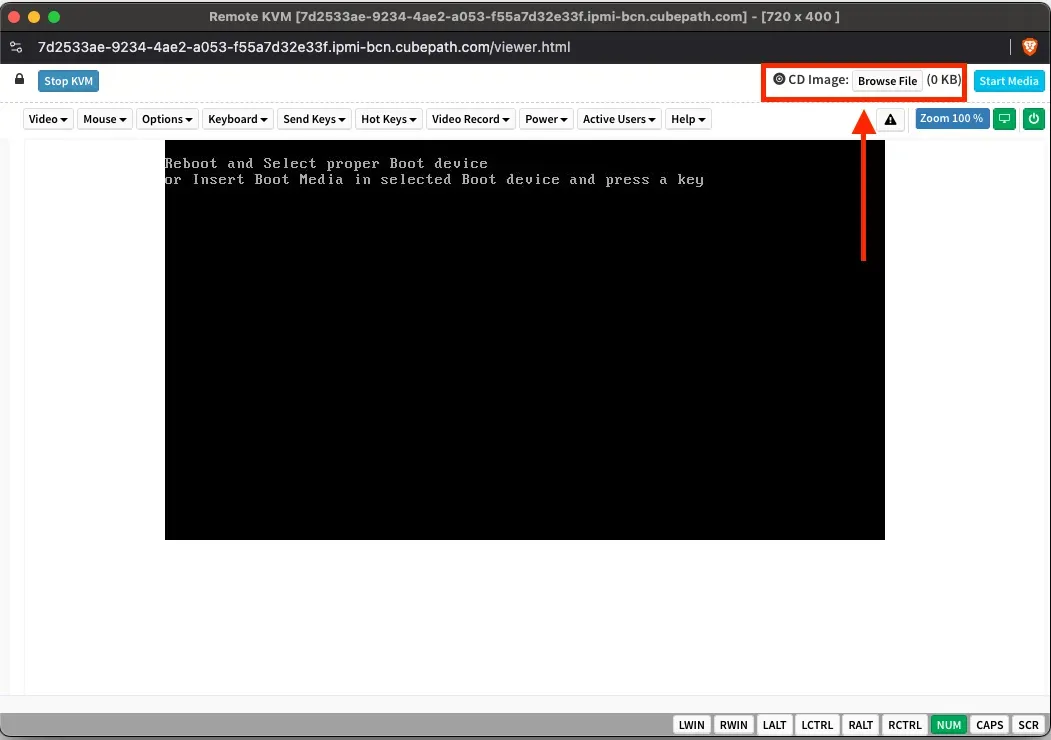
- After selecting the file:
- Click Start Media
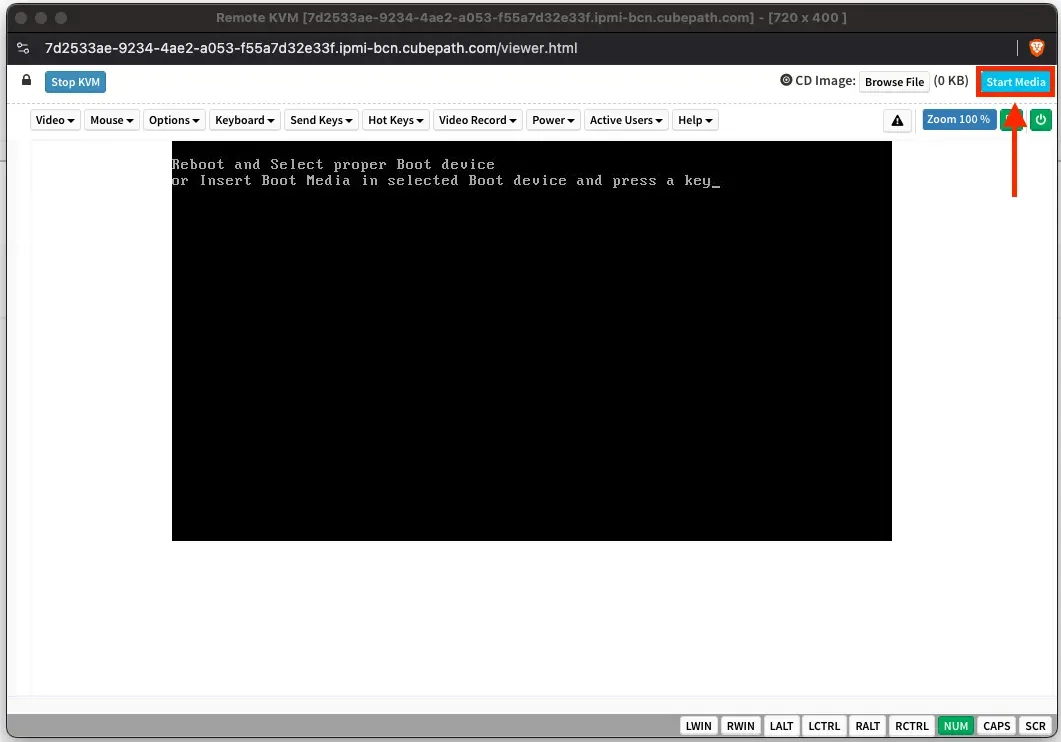
This will mount the ISO as a virtual CD/DVD on the server.
Starting the Installation
- Reboot the server if needed from the IPMI panel.
- Ensure the server boots from the virtual media (ISO).
- The operating system installation should start automatically.
Important Notes
- The ISO is uploaded from your local machine, so speed depends on your internet connection.
- Do not close the window during the mounting process.
- If the server does not boot from the ISO, check the Boot Order in IPMI.