


How to Access Your VPS Console from the Dashboard
In this guide you'll learn how to open the VNC console of your VPS from the CubePath client panel. The console gives you direct access to your server as if you were sitting in front of it — useful when SSH is unavailable, for OS reinstalls, network config changes, or recovering access.
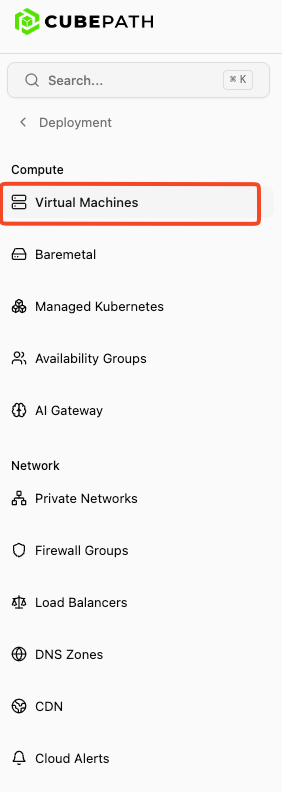
1. Open the VPS Servers section
After signing into the CubePath dashboard, click VPS Servers in the left sidebar.
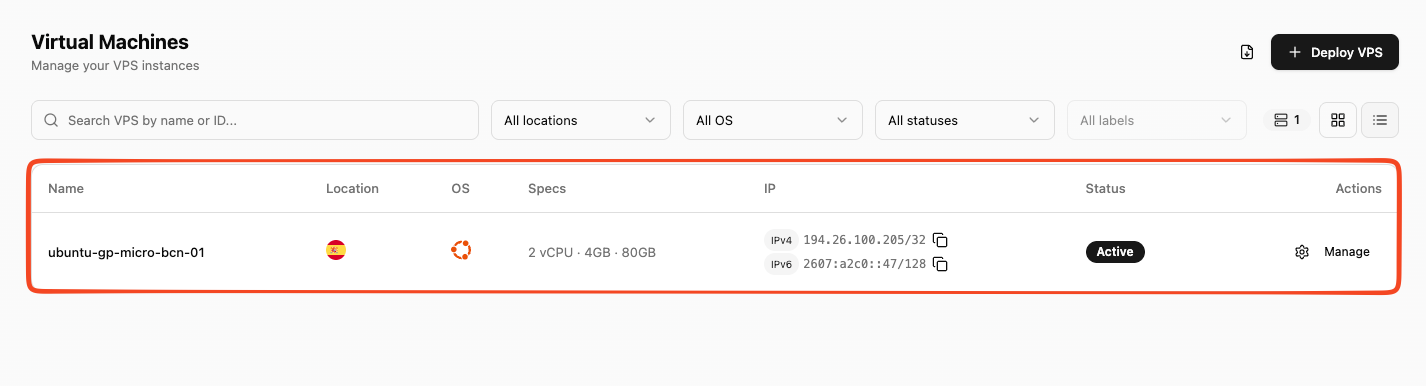
2. Select your VPS
You'll see all your VPS listed. Click the one you want to open its detail page.
3. Click the Console button
In the VPS header, at the top right, you'll find the Console button (monitor icon). Click it to launch the console.
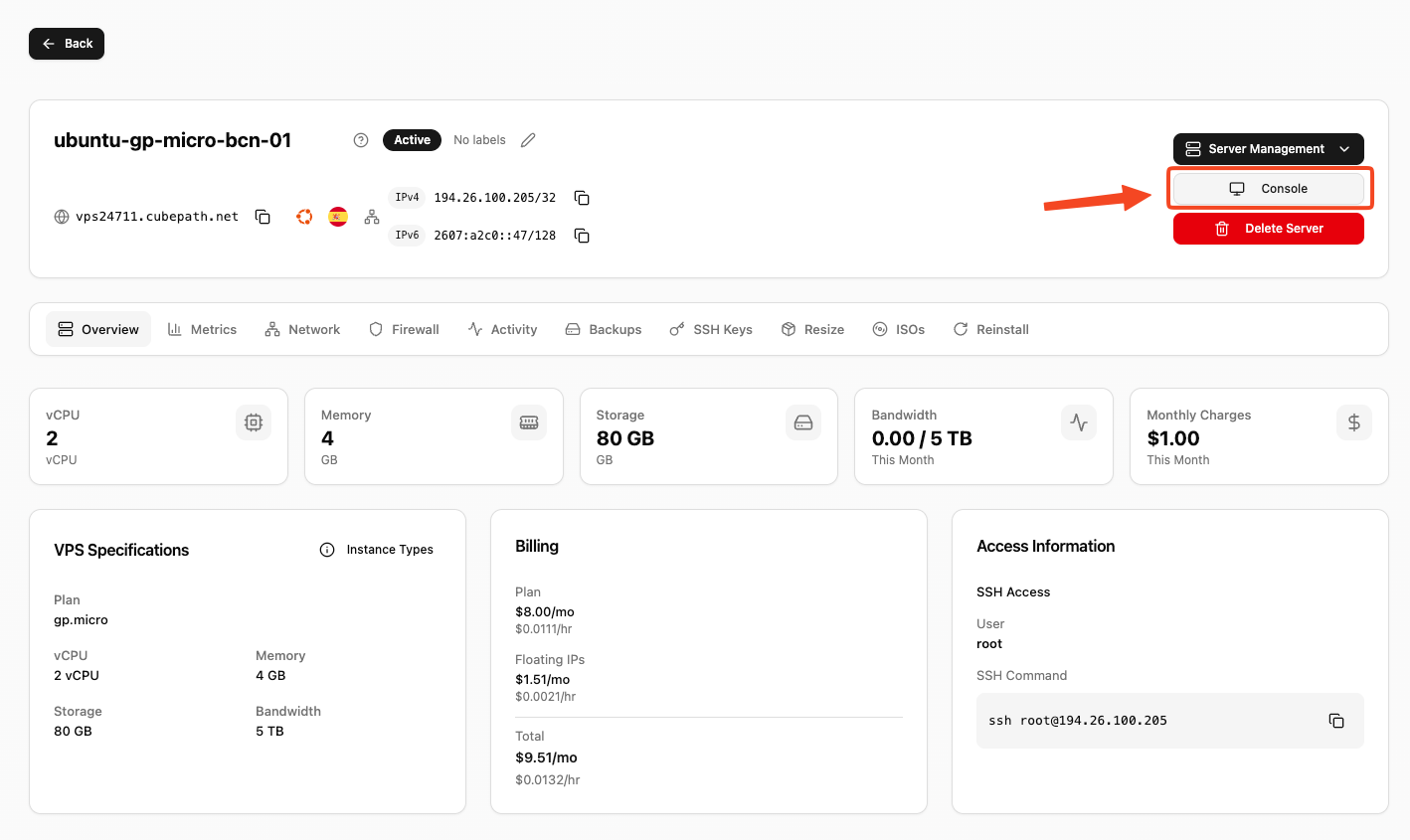
Note: the VPS must be in running state to open the console. If the button is disabled, start the server first. Also make sure popups are allowed in your browser for
my.cubepath.com.
4. Use the console
A new window will open with your server's console. You can now type and interact with the system as if you had a monitor connected.
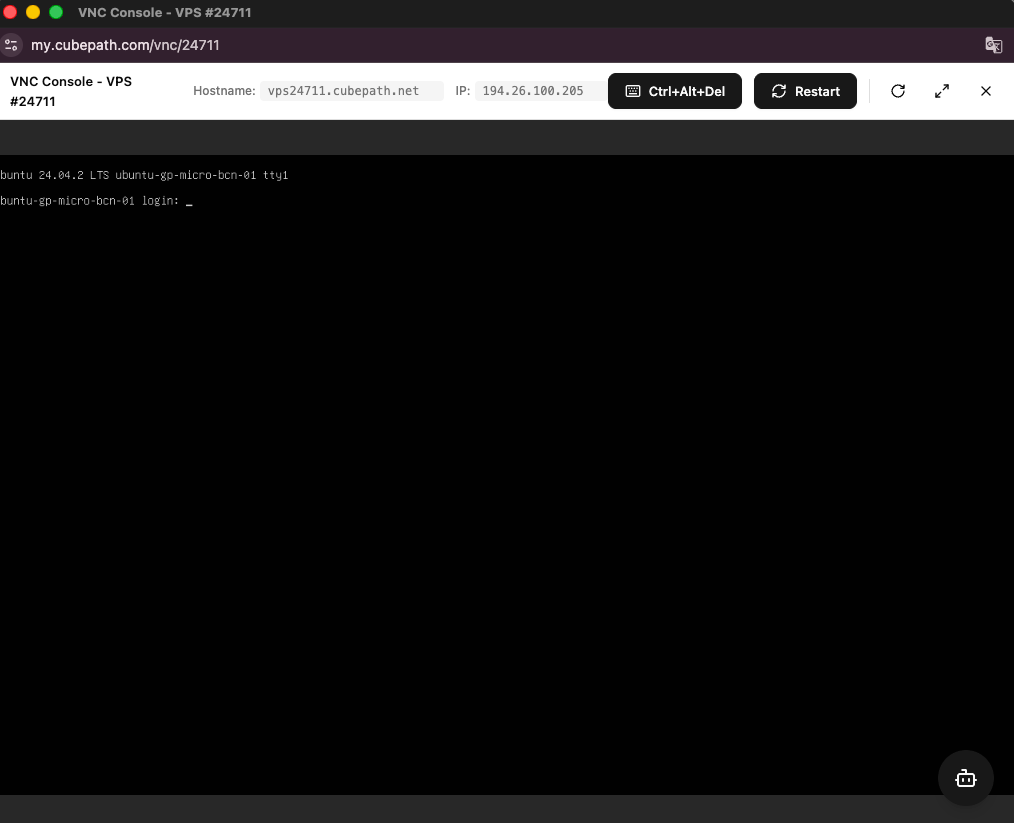
5. Action bar
In the top-right corner of the console you have this toolbar:

| Button | What it does |
|---|---|
| Ctrl+Alt+Del | Sends the key combo to the server (Windows login, secure attention sequence, etc.) |
| Restart | Reboots the VPS (asks for confirmation) |
| Refresh | Reconnects the VNC session if it gets stuck |
| Fullscreen | Toggles fullscreen mode |
| Close | Closes the console window |
And that's it. If the server stops responding or the console won't load, try Refresh first; if that doesn't work, restart the VPS from the panel and open the console again.